The AI Note System That Runs My LifeHey - Brandon here. This week’s issue is a quick break from our usual structure of AI news, updates, and case studies. Instead, I want to walk you step by step through one of the most useful AI systems I’ve built for myself: how I capture ideas, conversations, reminders, and random thoughts on the go and use AI to automatically organize them and turn them into action. 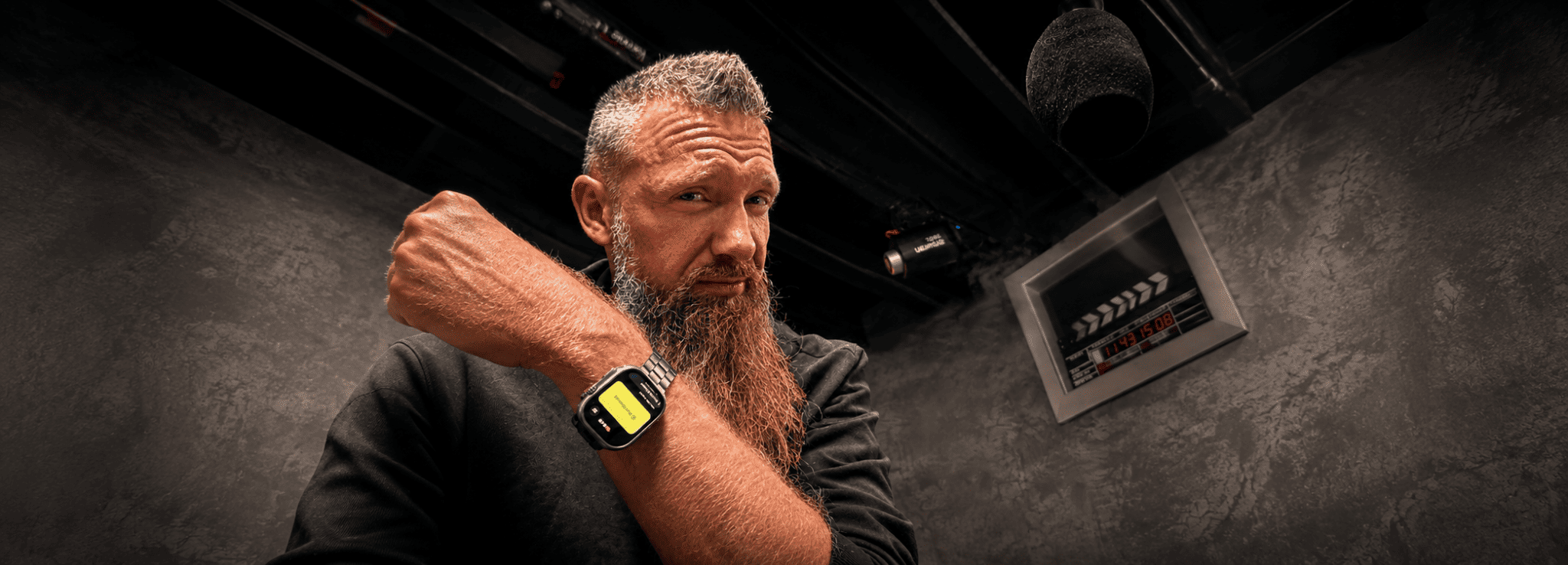 All day long, you have thoughts pop in your head that are important. Most of them get lost forever. Your tenant mentions they need a new smoke alarm. You need to remember to pick up diapers at Costco. Did you book that hotel for your wife and your trip next week? You thought of a really funny idea for Instagram content You keep forgetting to analyze three deals a day, and you want to remember. And on and on and on.
It's not that we're stupid. We just don't have a good system to record all those thoughts. It's too cumbersome to have to write them down every time you think of something Granola fixes the first half of that problem: You send yourself a note in just a few seconds - from the app or from your Apple Watch - and it's recorded. Connecting it to Claude or ChatGPT fixes the second half: now your AI actually knows what you talked about, and it can put those notes to work. This guide walks you through four things: Getting Granola on your iPhone Putting it on your Apple Watch (with a record button right on your watch face) Connecting it to Claude or ChatGPT A peek at the next level: making the whole thing run itself
None of this requires you to be technical. If you can install an app, you can do all of it. Part 1: Get Granola on your iPhone(no, this is not sponsored by Granola. I just personally use it and love it) Step 1. Open the App Store on our phone and search for "Granola." Download it (it's free to start). Step 2: Download the desktop app as well. You're gonna need it when you want to connect it to Claude or ChatGPT later. Step 3. Open the app and sign in with your Google or Microsoft account or email. Use the email tied to your work calendar. That matters more than it sounds, because… Step 4. Let Granola connect to your calendar. This is where it gets good. Granola now shows your upcoming meetings, and tapping one starts a note for that exact meeting, with the title and attendees already filled in. Step 5. Fill out your profile in Settings (tap your picture, top right). Tell it your name and what you do. The AI uses this context to write better notes. One thing worth knowing: the phone app is built for in-person conversations and phone calls. Your phone can't listen in on a Zoom call running on your laptop (Apple doesn't allow apps to hear other apps). So if you do a lot of virtual meetings, grab the desktop app too. Same account, same notes, everything syncs. Part 2: Put Granola on Your Apple WatchThis is my favorite part of the whole setup, and the one most people skip. Why the watch? Speed. Good conversations don't wait for you to dig your phone out of your pocket, open an app, and fumble around. On the watch, recording a note takes about two seconds from the moment you raise your wrist. Later, we'll connect it directly to your Claude or ChatGPT so you can keep, organize, and even get stuff done automatically. 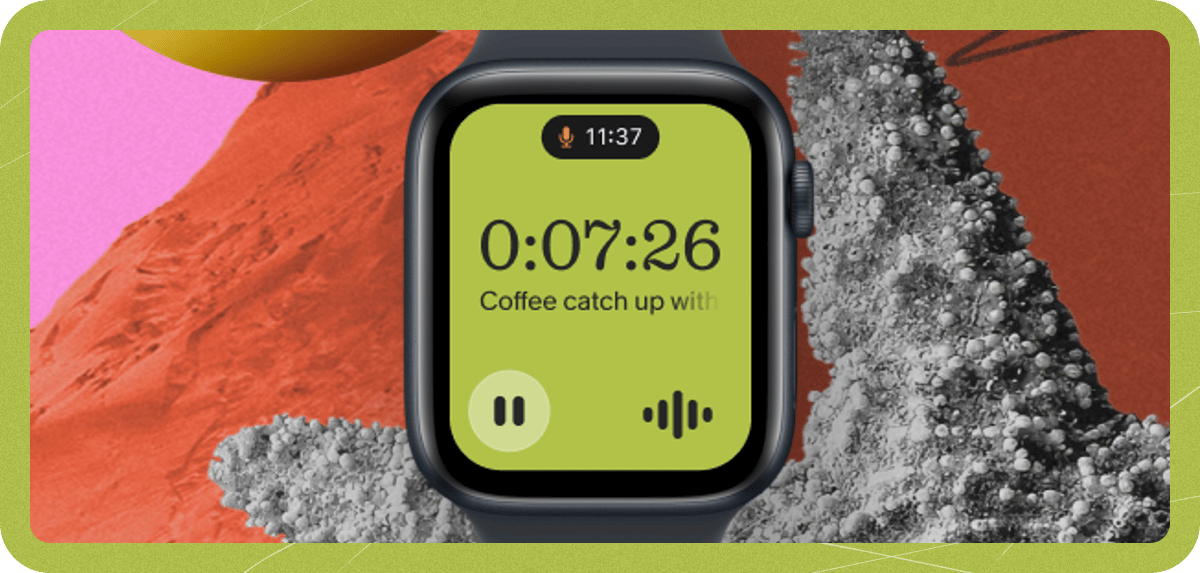 What you need first: the latest Granola iPhone app, and an Apple Watch running watchOS 11 or later. (If your watch can't update to watchOS 11, Granola won't show up as an option.) Install it on the watchGranola may install on your watch automatically once the iPhone app is updated. If it doesn't: Open the Watch app on your iPhone Scroll down to Available Apps Find Granola and tap Install
Put the Granola button on your watch faceHere's the move that makes the difference. Apple calls these little watch face buttons "complications" (no, I don't know why either). Adding Granola as one puts recording a single tap away, all day long. Open the Watch app on your iPhone Select the watch face you want to edit Choose a position in the Complications section Select Granola
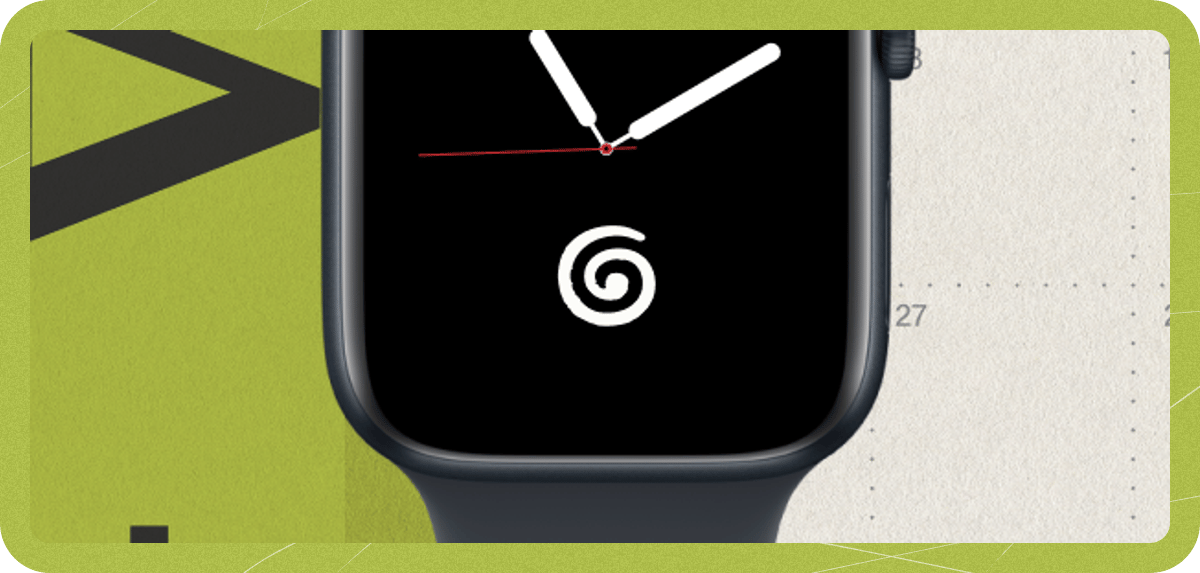 I run mine this way. The Granola button sits right on my watch face, so capturing a conversation or a random idea is faster than unlocking my phone. Recording from your wristTap the Granola button on your watch face (or open the app) Start a new note Tap End when you're done
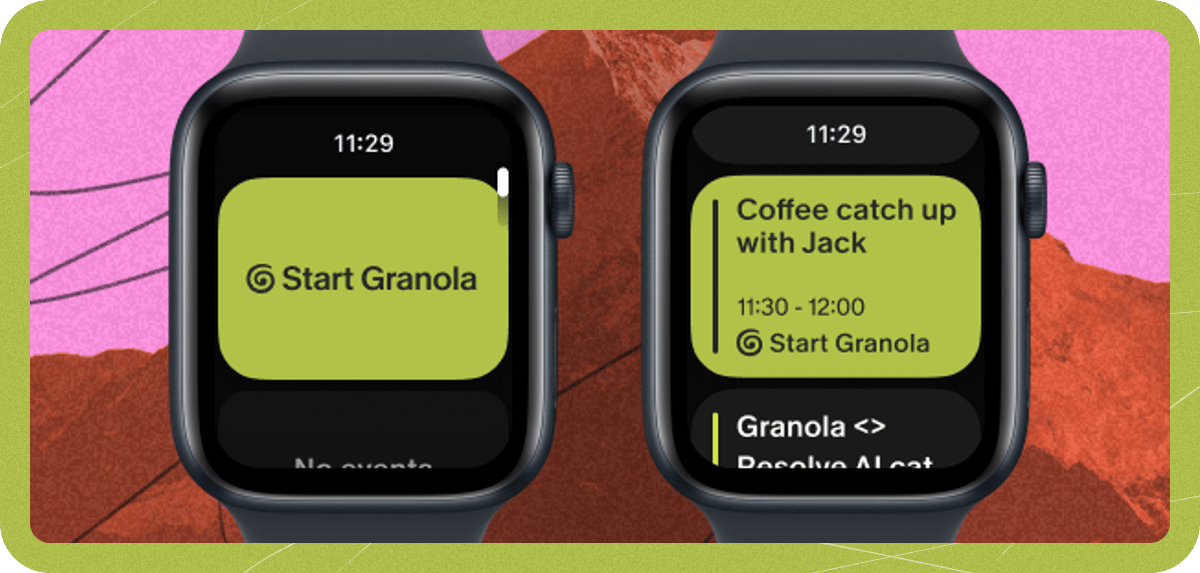 A few things so nothing surprises you: A chime plays when recording starts and stops, and there's no way to silence it. That's on purpose, so people around you know they're being recorded. (Which you should be telling someone anyway if youre with them. Always.) You can lower your wrist, leave the app, or go back to your watch face. Recording keeps going in the background. It even works offline. The recording saves on your watch and syncs to your phone when it can.
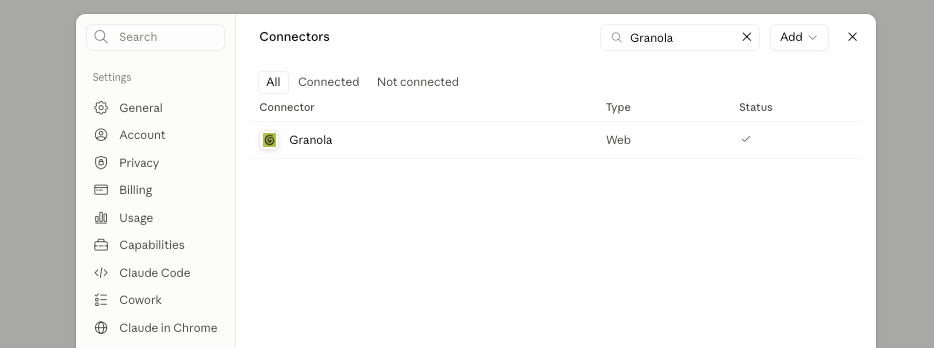
After you tap End, the watch sends the audio to your iPhone, which uploads it and generates your notes. A minute or two later the finished note shows up in Granola on your phone and computer, right alongside everything else. Part 3: Connect Granola to Claude or ChatGPTNow the fun part. Everything so far gets your conversations into Granola. This step gets them out, into the AI you already use every day. What's an MCP? (The 30-second version)The connection uses something called MCP, which stands for Model Context Protocol. Forget the name. Think of it as a standard plug, like USB. Granola built one end of the plug, and Claude and ChatGPT built the other. When you connect them, your AI can read your meeting notes whenever you ask it a question that needs them. Your notes don't get copied anywhere. The AI reaches into Granola on demand, only for your account, only when you're the one asking. Connect it to ClaudeMake sure you're on a paid Claude plan (the free plan doesn't support connectors). It's like $20 a month. Don't be cheap. Open Claude and go to Settings Go to Connectors and search for Granola Click Connect, and sign in to Granola when the window pops up. Use the same email your Granola account is under. When you're chatting, make sure the Granola connector is toggled on
 Connect it to ChatGPT (I'd actually recommend using Claude, not ChatGPT. ChatGPT is great for chatting and making images, but Claude is where you get work done. Trust me. Make the jump if you haven't yet. Thank me in six months.)Make sure you're on a paid ChatGPT plan Open ChatGPT and go to Settings Go to Apps, search for Granola, and connect Sign in to Granola with the same email your account is under Now you can type @Granola in a chat, or just ask about your meetings and it'll know to look
What to ask once it's connected Try these: "What meetings did I have this week, and what were the action items?" "What did we decide about pricing in my call on Tuesday?" "Draft a follow-up email based on my meeting with the lender this morning." "Look through my last ten meetings. What am I committing to that I haven't done?"
That last one, by the way, is worth the entire setup. An AI that can read every conversation you've had is shockingly good at catching the balls you're about to drop. If something's not workingOn Granola's free plan? The AI can only see your last 30 days of notes, and a few tools (like full transcripts) need a paid Granola plan. AI says it can't find your notes? Ask it: "Which Granola account am I signed in with?" Nine times out of ten you connected the wrong email, or Granola is set to a different workspace. Fix the account, or switch workspaces in the Granola app. Connected but no tools showing? Disconnect and reconnect the Granola connector in your AI's settings. That resets it.
Part 4: The Next Level. Making It Run Itself.Everything above works on a simple model: you ask, the AI answers. But what if you never had to ask? Imagine every conversation you have getting automatically pulled, categorized, filed into the right folder, and turned into action items on your task list, every single morning, while you sleep. That's not a someday thing. It's what I do now, and here's the general shape of how, so you know what you're signing up for. I'll keep this high level on purpose. The setup deserves its own guide. But you need three pieces: 1. Claude Cowork. This is the desktop version of Claude that can actually work with the files on your computer, not just chat with you. It reads folders, writes documents, and moves things around like an assistant sitting at your machine. 2. A "second brain" file system. Just folders, organized so an AI can navigate them. Mine has folders for each business, for people, for projects, and an inbox for anything unfiled. The structure matters more than the tool. If a smart new assistant could open your folders and understand where things go, so can Claude. 3. Scheduled tasks. Cowork lets you tell Claude to run a job on a schedule. Every morning at 6am. Every hour. Whatever you want, without you touching it. Put the three together and the recipe looks like this: Connect the Granola connector inside Claude Cowork (same as Part 3) Give Cowork access to your second brain folder (If you don't know what this is... I'll make a video on it soon, but basically, it's a way of storing information on your computer. Think of it like a file cabinet or a collection of file cabinets that are super well organized and that the AI can dig into and put files in and read files and understand everything about your life and your business.) Write it simple filing rules in plain English: "Notes about Business X go in this folder. Anything mentioning a deal goes here. Action items get added to my task list file." Build a command center inside Claude that updates daily. Claude will likely use an artifact, which is simply a way of displaying data and information. Just tell Claude you want to build a command center that updates every day with all your notes from Granola. It'll take care of the rest!
Fair warning on the cost, because every real recommendation has one: this takes an afternoon to set up, and for the first week or two you'll be correcting it like a new hire. "No, that note goes in the deals folder." That's normal. It learns your rules fast. But once it's humming? Every conversation you have gets captured on your wrist, written up by Granola, filed by Claude, and turned into a to-do list you didn't write. Your notes were never the point. What you do with them is. Start with Part 1 today. The rest can come this week. One more thing: If you enjoyed this deeper dive and want more newsletters with step-by-step breakdowns of the AI systems and workflows I’m actually using, hit reply and let me know. Next week, we’ll be back to our usual format with the latest AI news, updates, and a reader-submitted case study. See you next week!
|